


Table Of Content
Kapwing is a browser video editor. You open a tab, drop in a file, trim it, caption it, resize it for a different platform and share it with your team. That is the job, and for a long time it did that job well enough that you never thought about the bill.
That is what changed in 2026. In December 2025 Kapwing folded transcription, dubbing, lip sync and every other AI feature into a single pool of AI credits. The Pro plan gets 1,000 of them a month. They reset on the first of the month no matter when you subscribed, they do not roll over, and on Pro you cannot buy more at any price. Topping up is a Business plan feature.
I went looking for tools that do the same work without that ceiling. This guide covers eight of them, with pricing checked on each vendor's own page on the day of publishing, and one column in the comparison table that nobody else seems to print: how each tool actually meters you.
Some of these are near-identical replacements. Some are better at one specific job than Kapwing has ever been. One of them, ours, does something none of the others do once the video is finished.

The Best Kapwing Alternatives At a Glance
- 1. Zebracat – Best for turning video into audience growth, not just exports
- 2. VEED – Best like-for-like browser editor
- 3. CapCut – Best genuinely free browser editor
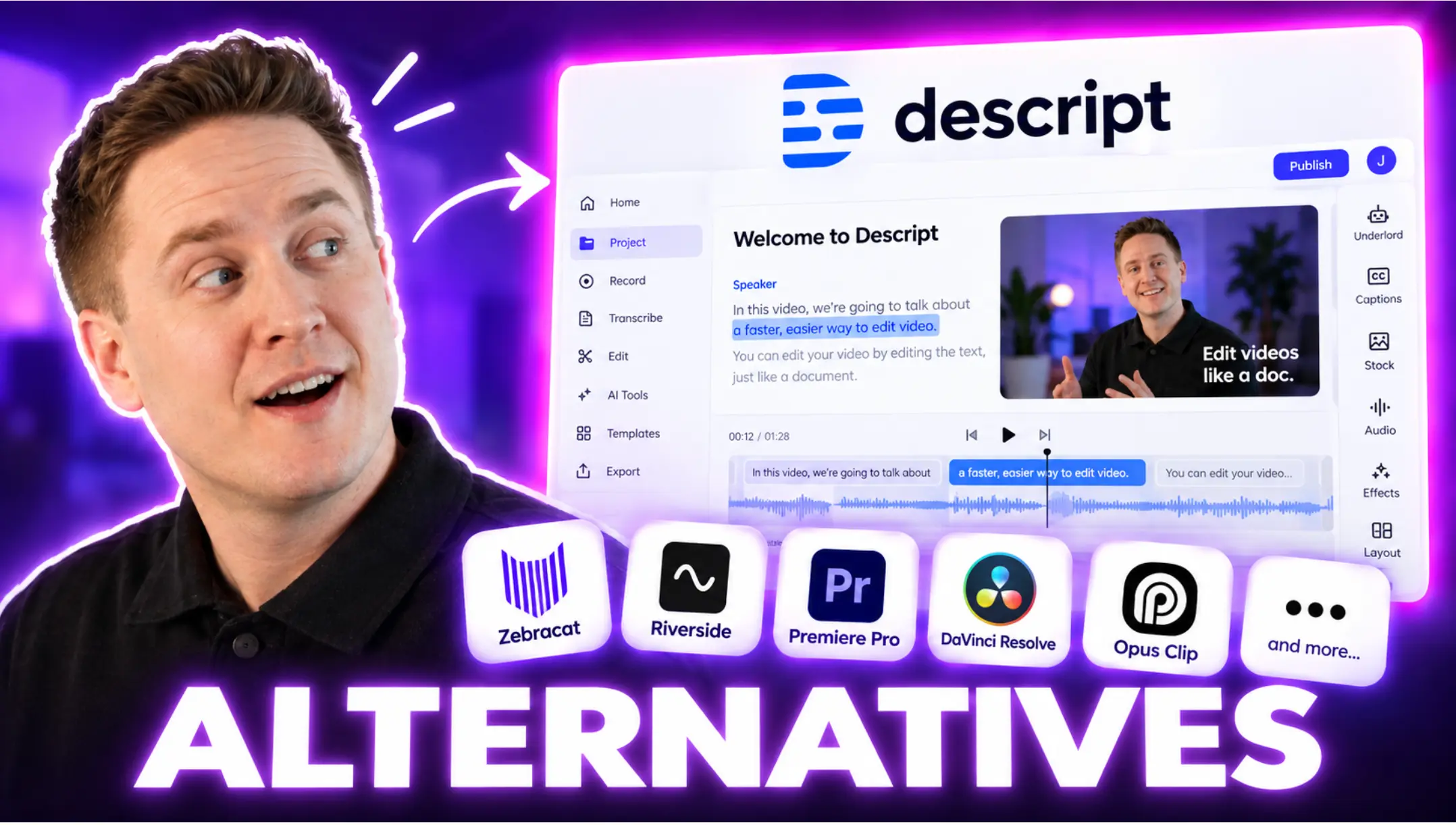
- 4. Descript – Best for long videos, podcasts and webinars
- 5. Clipchamp – Best if you never want to think about credits
- 6. Canva – Best for brand templates and team collaboration
- 7. Captions – Best for AI-assisted talking-head editing
- 8. OpusClip – Best for turning one long video into many clips
Here is the same eight side by side, with the column that decides whether a plan will hold up: how each one meters you, and what it does once the video exists.
| Tool | Best for | How you are metered | What happens after the video is made | Starts at |
|---|---|---|---|---|
| Zebracat | Growing an audience with video | Videos per month plus AI credits, both printed on the plan | Schedules and posts to your accounts, then studies what performed and feeds that back into the next video | Free, then $23/mo billed annually ($39 monthly) |
| VEED | The closest thing to Kapwing | Per editor seat, plus AI credits that do not roll over and cannot be topped up | You export | Per editor, shown in your local currency |
| CapCut | Editing for free without a watermark | Core editing is uncapped on the free tier. Pro pricing is only shown inside the app | You export | Free, Pro $19.99/mo or $179.99/yr |
| Descript | Long videos, podcasts and webinars | Two separate meters, media hours and AI credits. Both can be topped up mid-cycle | You export | Free, then $16/mo billed annually ($24 monthly) |
| Clipchamp | Never thinking about credits | No credits and no caps. Free is a feature gate, Premium arrives with Microsoft 365 | You export | Free, Premium via Microsoft 365 Personal at $9.99/mo |
| Canva | Brand templates and team collaboration | Flat storage and seats, with AI counted in uses | You export | Free, then $180/yr |
| Captions | Talking-head video and captions | Credits per month, 500 on the entry plan | You export | Free, then $24.99/mo |
| OpusClip | One long video into many clips | Credits, and it tells you what one buys: 1 credit is 1 minute of source video | Posts clips to Shorts, TikTok and Reels on paid plans | Free, then $15/mo |
| Kapwing (for reference) | All-round browser editing | 1,000 credits a month on Pro, no top-ups, and no per-action cost shown until you spend it | You export, under a 120-minute ceiling | Free, then $16/mo billed annually ($192/yr) |
Prices verified on each vendor's own pricing page on 4 September 2026. VEED shows your local currency and does not publish a single global figure. CapCut's own help center says its price varies by region, device and promotion, and directs you to the upgrade screen inside the app.
What Makes the Best Kapwing Alternative?
Kapwing sits in a specific spot. It is not a timeline editor for film work and it is not a text-to-video generator. It is the tab you open to make a finished clip out of a rough one: trim it, caption it, translate it, crop it to vertical, hand it to a colleague for a comment.
So a real alternative has to do that work in a browser. Anything that only generates video from a prompt is answering a different question, and swapping Kapwing for it will leave you without subtitles, without resizing and without a shared workspace.
Past that, four things separate the good options from the rest.
- How you are metered. Flat limits are predictable. Credits are not, unless the vendor prints what each action costs before you spend it. This is the single biggest difference between the tools below and it is the reason most people go looking in the first place.
- Whether long projects actually finish. Browser editors hit walls that desktop editors do not. Ask about the export ceiling before you commit a webinar or a podcast to one.
- What the free tier really gives you. A free plan that watermarks everything is a trial. A free plan that exports clean 1080p is a tool.
- What happens after the video is made. Almost every tool in this category stops at the export button. Whether that is fine depends on whether making the video was your job or posting it was.
What Kapwing Actually Costs in 2026
Kapwing publishes four tiers. Here is the ladder as it stands on its own pricing page, checked on 4 September 2026.
- Free - $0. Exports carry a watermark, cap out at 720p and are limited to four minutes. Auto-subtitling up to 50 minutes, text to speech up to three minutes.
- Pro - $24 a month, or $16 a month billed annually, which is $192 a year. 1,000 AI credits a month, 120-minute exports, 4K, no watermark, 1,000 subtitle minutes and 50 dubbing minutes.
- Business - $64 a month, or $50 a month billed annually, which is $600 a year. 4,000 credits, 4,000 subtitle minutes, 200 dubbing minutes.
- Enterprise - custom, with SSO and an account manager.
The number that matters is not the $16. It is what 1,000 credits buy. From Kapwing's own subscription documentation: lip sync and eye contact cost 30 credits a minute, dubbing costs 10 credits per 30 seconds, and Kai video generation runs from 13 to 60 credits per 60 seconds.
Run that arithmetic. A full month of Pro credits is roughly 33 minutes of lip sync, or roughly 50 minutes of dubbing, and then nothing else at all until the first of the month. Not 33 minutes of lip sync plus your dubbing plus your transcription. Thirty-three minutes, total, of one feature.
There is a second thing worth knowing before you buy. Kapwing's pricing page and its own help center disagree with each other in several places, and they have for a while. The pricing page says free exports can be four minutes; the subscription FAQ says one. The pricing page says free uploads can be 2 GB; the FAQ says 250 MB. The pricing page says 10 free credits; the FAQ says 50. The pricing page advertises up to 50 minutes of free auto-subtitling; the subtitles page says 10. The subtitles page sells unlimited subtitles on Pro while the pricing table caps them at 1,000 minutes a month. And the free tier's own headline on the pricing page promises unlimited exports with a watermark, two screens above a table that sets a 30-minute monthly export limit.
You can check every one of those in about fifteen minutes. None of them is a dealbreaker on its own. Together they are the reason it is hard to work out what you are buying.
What I Found Using Kapwing Pro in 2026
I ran Kapwing Pro to see whether the credit ceiling was a real constraint or a theoretical one. Three things stood out.
The credits go far faster than the plan implies. A thousand a month reads like a lot until you use the features the plan is sold on. The AI tools are the expensive ones, and they are the reason you are on Pro.
When they are gone, there is no way to buy more. This is the part that catches people. There is no top-up button on Pro. Kapwing's own subscription FAQ confirms that buying additional credits is a Business plan feature. So the options are to jump from $16 a month to $50 a month billed annually, or to stop working until the first of the month.
You cannot see where the credits went. The per-action costs are published in the help center, but they are not in front of you while you work, and there is no running ledger telling you that the last four regenerations cost you 120 credits. Combined with the pricing inconsistencies above, you end up guessing at your own usage.
Two things from Kapwing's own release notes make that guessing worse. Since March 2026 its AI agent, Kai, automatically accepts and spends on plans it judges inexpensive, up to 40 credits at a time, without asking. And until August 2026 users were being charged credits for generations that never finished, which Kapwing lists among that month's fixes.
Why People Leave Kapwing
The complaints that come up repeatedly are not about the editor. They are about what happens around it, and most of them are written down in Kapwing's own documentation rather than being a matter of opinion.
- There is no trial and no refund. Kapwing's refund policy is a blanket no, and it applies to annual plans the same as monthly ones. A chargeback permanently closes the account with no reinstatement.
- You cannot downgrade mid-cycle. Moving from annual to monthly, or from Business back to Pro, means canceling and waiting out the cycle before subscribing again.
- Empty seats keep billing. Inviting a team member charges immediately and prorated. Removing them refunds nothing, and you keep paying for that seat until you separately remove it in the billing tab.
- Canceling can strand your work. A workspace that drops back to free exposes three unlocked projects, and per Kapwing's documentation anything older than three days is permanently deleted. Users on review platforms have described discovering that at the worst possible moment.
- Long projects hit a wall. Every paid plan caps exports at 120 minutes, and Kapwing's own troubleshooting guide names 4K footage, twenty or more scenes, durations past 55 minutes, background removal over 10 minutes and audio waveform layers over 10 minutes as things that can make a project fail to export. Its suggested fix is to drop to standard definition or export in pieces.
That last one is worth sitting with if you edit anything long. The pricing page sells two-hour 4K exports. The support documentation describes the conditions under which a two-hour 4K project will not export. Both pages are live right now.
Best Kapwing Alternatives I Tried in 2026 (Free & Paid)
1. Zebracat - Best for turning video into audience growth, not just exports
Every other tool on this list, and Kapwing itself, ends at the same place: a finished file and a download button. What you do with it next is your problem. Zebracat is built around the assumption that the download is the least interesting part.

It works as a growth loop rather than an editor. It looks at what is already performing in your niche, builds on the formats that work there, generates the video from a text brief with script, scenes, voiceover, music and captions already in place, then schedules and posts it across your social accounts including YouTube, and learns from how each one did. The next video is informed by the last one. It also remembers your brand and your taste, so it stops asking you the same questions.
The second thing worth knowing, given the subject of this article, is how it handles models. New AI video models arrive constantly and each one is good at something different. Zebracat plugs into the newest ones usually within days of release and picks the right one per video and per scene automatically, tuned for the best quality per credit. You never have to learn which model is good at motion and which is good at faces, and you never have to choose.
You still work in credits, and this article has been hard on credits, so it is worth being straight about it: Zebracat's plans state the number of videos and the number of credits you get, and both are on the pricing page rather than in a help article. That is the difference being argued for here, not the absence of metering.
Where it is not the right answer: if your job today is to trim a file someone sent you and burn subtitles onto it, that is an editing job, and a browser editor will do it faster. Zebracat is for the case where making the video was never really the goal.
Zebracat Best Features
- Publishing and growth loop - Schedules and posts across social platforms including YouTube, then studies what performed and feeds that back into what gets made next. No other tool in this list closes that circle.
- Automatic model routing - Access to the newest AI video models within days of release, selected per video and per scene without you choosing, and tuned for the best quality per credit.
- Niche research built in - Finds the formats already working in your space and builds on them rather than starting from a blank prompt.
- Text in, post-ready video out - Script, scenes, voiceover, music and captions produced together, not a clip you then have to assemble.
- Conversational agent flow - You work with it in a chat rather than driving a timeline, and it takes most of the decisions.
- Brand and taste memory - Learns your brand kit and your preferences and applies them without being asked again.
- 150+ AI voices across 80+ languages - Including voice cloning for a consistent brand sound.
- AI avatars and presenters - Presenter-style video without appearing on camera.
- 1M+ stock assets - Available inside the platform to supplement generated footage.
Zebracat Limitations
- Not a timeline editor - If you want frame-by-frame control over footage you already shot, this is the wrong tool and Kapwing or VEED is the right one.
- AI-first workflow takes adjusting - Editors used to dragging clips need a session or two to trust an agent with the decisions.
- Free plan is a trial, not a tier - Five videos, 720p and 30 seconds each. Enough to judge the output, not enough to work with.
- Browser based - Needs a connection, like every other tool here except Descript's and CapCut's desktop apps.
Zebracat Pricing
- Free - $0. Five videos total, 720p, 30 seconds each, standard voices, no card required.
- Cat Mode - $39 a month, or $23 a month billed annually. 15 videos and 350 AI credits a month, two-minute videos, 1080p, one brand kit.
- Super Cat - $99 a month, or $59 a month billed annually. 40 videos and 1,400 credits a month, five-minute videos, five brand kits, five custom avatars and five voice clones a month.
- Unlimited Cat - $199 a month, or $119 a month billed annually. Unlimited videos, 3,600 credits, unlimited brand kits, ten avatars and ten voice clones a month.
- Enterprise - from $599 a month. Custom credits, API access, custom models, dedicated support.
If the ceiling you keep hitting is Kapwing's credit reset rather than any missing editing feature, you can make a video and post it in the same session here and see whether the loop is worth more to you than the timeline.
What Are Real Users Saying About Zebracat?
2. VEED - Best like-for-like browser editor
If you want the smallest possible change from Kapwing, this is it. VEED does the same core jobs in the same place: auto-subtitles, resizing for social, trimming, screen and webcam recording, team seats with a reviewer role, and a large set of AI tools bolted on top.
It is also the tool most likely to feel familiar within ten minutes, which matters more than feature lists when you have work to hand in today. Subtitles are unlimited on paid plans under a fair-use limit, translation covers 50+ languages, and exports go to 4K on the higher tiers.
The catch is that VEED has the same shape of problem you are trying to leave. Its AI features run on credits, those credits do not roll over, and there is no self-serve top-up: more credits means a plan upgrade. On top of that every plan is priced per editor, so a two-person team pays twice. VEED's documentation is clear that credits are only deducted on success, but a bad output is not a failure, so a generation that comes back wrong still costs you.
If you want the full picture, we went through this one in detail in our guide to the best VEED alternatives, and there is a side by side of Zebracat against VEED if you are weighing those two specifically.
VEED Best Features
- Auto-subtitles and translation - Unlimited subtitle generation on paid plans under a fair-use cap, with translation into 50+ languages.
- Resize for social - One-click aspect ratio conversion for each platform, the same job Kapwing does.
- Screen and webcam recording - Record straight into the editor rather than uploading from elsewhere.
- Team seats and reviewer role - Editors plus a separate reviewer seat on higher tiers.
- 4K export - On the upper plans. Free is 720p, the entry paid tier is 1080p.
- Large AI toolset - Avatars, voice, image and video generation, eye contact correction, background removal.
VEED Limitations
- Credits do not roll over and cannot be topped up - The same trap as Kapwing. An unused allowance is forfeited at renewal, and running out means upgrading.
- Priced per editor - The plan price multiplies by the number of editors in the workspace, so team cost scales faster than it looks.
- Bad output still costs credits - Credits are refunded on technical failure, not on a result you cannot use.
- Watermark is baked into the export - Upgrading does not clean up files you already exported. You re-export from scratch.
- Free tier caps exports at 10 minutes - And at 720p, with the watermark.
VEED Pricing
VEED does not publish one global price. Its pricing page renders in the currency of whoever is looking at it, so the figure you see depends on where you are. Read on 4 September 2026 in euros, the annual ladder was Creator at 11 EUR, Pro at 23 EUR and Studio at 37 EUR per editor per month, carrying 6,000, 30,000 and 180,000 AI credits respectively, with Enterprise on custom terms. Check veed.io/pricing for your own currency, and remember to multiply by the number of editors.
3. CapCut - Best genuinely free browser editor
Most tools that call themselves free are running a trial with the word free written on it. CapCut is the exception on this list. The browser editor is free, the exports do not carry a watermark, and auto-captions are included at no cost. CapCut states plainly in its own FAQ that you can make a video with no watermark for commercial as well as personal use.
For the specific thing most people use Kapwing for, taking a clip and making it postable, that is a hard offer to beat. You get cutting, trimming, transitions, subtitles in multiple languages, aspect ratio changes for each platform, and a deep library of effects and templates, in a browser, for nothing.
What you give up is the workspace. CapCut is built around individual creators rather than teams, its collaboration story is thin next to Kapwing's shared workspaces and real-time comments, and free cloud storage was discontinued in 2024, so project management lives on your own machine. It is also owned by ByteDance, which is a procurement question in some organizations and irrelevant in others.
There is one more wrinkle worth knowing before you budget for it, covered under pricing below. We have a fuller comparison in our guide to the best CapCut alternatives, and a hands-on write-up in our CapCut review.
CapCut Best Features
- Free exports with no watermark - Confirmed on CapCut's own site, for commercial and personal use.
- Free auto-captions - Multi-language subtitle generation on the free tier.
- Aspect ratio conversion - Resize for each platform without paying, the same job as Kapwing's resize tool.
- Works in browser, desktop and mobile - The same project across all three, which none of the pure browser tools here offer.
- Very large template and effects library - Particularly strong for short-form social formats.
- 8K export - Available on the free tier as well as Pro.
CapCut Limitations
- Weak team collaboration - No real equivalent of Kapwing's shared workspace with live comments. This is the main reason teams do not switch.
- No free cloud storage - Discontinued in August 2024. Pro adds a large storage allowance, free users manage their own files.
- Pricing is not published - See below. You cannot compare it against anything without signing in.
- Ownership - ByteDance, which some organizations will not approve.
CapCut Pricing
CapCut is the only tool here that does not put a price on a public pricing page. Its pricing URL has been returning a server error, and its own help center says the price varies by region, device and current promotions and tells you to check the upgrade screen inside the app. On CapCut's own resource pages the figures given are $19.99 a month or $179.99 a year for Pro, with a team plan around $24.99 a month, but treat those as indicative rather than as a quote: the number you are offered may not be that one. The free tier, which is the reason CapCut is on this list, needs no such caveat.
4. Descript - Best for long videos, podcasts and webinars
This is the one to look at if the wall you keep hitting is length. Kapwing caps exports at 120 minutes on every paid plan, and its own troubleshooting guide lists 4K footage, twenty or more scenes and durations past 55 minutes as reasons a project may not export at all. If you edit interviews, webinars or podcasts, that is not an edge case, that is Tuesday.
Descript's approach is different enough to be worth the adjustment: it transcribes your video and you edit the transcript. Delete a sentence in the text and it disappears from the video. For talking-head content, which is what long videos usually are, this is dramatically faster than scrubbing a timeline, and it makes removing filler words and dead air close to trivial.
It also has the most honest metering on this list. There are two meters, media hours and AI credits, and they are separate, which takes a moment to get used to. But on the Creator and Business plans you can top up either one mid-cycle. That is the exact thing Kapwing Pro will not let you do.
It runs in the browser and as a desktop app, records up to two screens at once, and does multi-language transcription and dubbing. The one gap against Kapwing is that social resizing is not the headline feature it is elsewhere here.
Descript Best Features
- Edit video by editing the transcript - Delete words, delete video. The fastest way to cut long talking-head footage.
- Mid-cycle top-ups - Buy more media minutes or more AI credits when you run out, on Creator and Business.
- Unlimited dynamic captions on every tier - Including the free plan.
- Transcription in 25 languages - With translation and dubbing on the Business tier.
- Screen recording, up to two screens simultaneously - Useful for demos and interviews.
- Underlord AI assistant - Studio sound, filler word removal, eye contact, green screen.
Descript Limitations
- Two meters to watch instead of one - You can have AI credits left and no media hours, or the reverse.
- Free tier expires rather than resets - The 100 AI credits on the free plan are one-time, not monthly. 720p exports carry a watermark.
- Media hours are the real constraint - The entry paid plan gives 10 hours a month, which goes quickly on long-form.
- Social resizing is not its strength - If your main job is cutting horizontal into vertical, look at CapCut or VEED instead.
Descript Pricing
- Free - $0. One hour of media a month, 100 one-time AI credits, 720p with a watermark, 5 GB storage.
- Hobbyist - $24 a month, or $16 a month billed annually. 10 media hours and 400 AI credits a month, 1080p with no watermark.
- Creator - $35 a month, or $24 a month billed annually. 30 media hours, 800 credits, 4K, unlimited stock, top-ups unlocked.
- Business - $65 a month, or $50 a month billed annually. 40 media hours, 1,500 credits, translation and dubbing in 30+ languages.
- Enterprise - custom, with SSO and SOC 2.
5. Clipchamp - Best if you never want to think about credits
Microsoft's browser editor is the cleanest answer to the specific problem this article is about, because it does not have the problem. There are no credits. There are no minute caps. There is no export count. There is a free tier and a premium tier, and the difference between them is a short list of features rather than a meter that runs down.
The free tier is unusually generous by the standards of this category: 1080p exports, no watermark, unlimited exports, free stock and effects, plus trimming, cropping, resizing, AI subtitles, voiceovers, silence removal and a screen, camera and voice recorder. Premium adds 4K, premium stock and effects, and a single brand kit.
The trade-off is that this is a consumer product. There is no seat model and no team workspace on the consumer plans, so if the reason you use Kapwing is that three people comment on the same project, Clipchamp will not replace it. It also ties you to a Microsoft account, and premium is not sold on its own: it arrives bundled with Microsoft 365.
We keep a separate rundown of the best Clipchamp alternatives if you want to see where it sits against the rest of the field.
Clipchamp Best Features
- No credits, no caps, no meters - The reason it is on this list. Exports are unlimited on the free tier.
- Watermark-free 1080p on the free plan - Rare, and the single most useful thing about it.
- Screen, camera and voice recorder - Included free, which VEED charges for.
- AI subtitles, voiceovers and silence removal - All available on the free tier.
- Trim, crop, resize and rotate - The core Kapwing jobs, free.
- OneDrive backup - Projects back up automatically to your Microsoft account.
Clipchamp Limitations
- No team workspace or seats - Single-user, tied to one Microsoft account. This is the dealbreaker for teams.
- Premium is not sold separately - You get it through a Microsoft 365 Personal or Family subscription, or a business license.
- 4K is behind premium - The free tier stops at 1080p.
- Consumer-grade feature depth - Fewer advanced AI tools than Kapwing, VEED or Descript.
Clipchamp Pricing
- Free - $0. 1080p, watermark-free, unlimited exports, free stock and effects, no brand kit.
- Premium - no standalone price. Included with Microsoft 365 Personal at $9.99 a month or $99.99 a year, or Family at $12.99 a month or $129.99 a year. Adds 4K, premium stock and effects, and one brand kit.
- Work version - included in some Microsoft 365 business and education licenses, with full premium features on a Copilot license.
6. Canva - Best for brand templates and team collaboration
Canva is on this list for a reason that has nothing to do with video quality: it is where the rest of your team already is. If the reason you pay for Kapwing is that a marketer, a designer and a founder all touch the same asset, Canva does that job better than any dedicated video tool here, because the video is just one document type in a workspace they already live in.
Brand kits are the concrete version of that. Free gives you one with three colors. Pro gives you five, Business gives you a hundred, and the whole point is that nobody has to be told the hex code again. Magic Resize handles the aspect ratio conversion that sends most people to Kapwing in the first place.
Metering is mostly flat: storage, brand kits and seats are fixed numbers. AI is the exception and it is counted in uses rather than credits, with the free tier getting either 200 standard uses or 20 premium ones, which tells you a premium use costs about ten times a standard one. Paid tiers are described only as multipliers, ten times and twenty times the free allowance, which is less clear than it should be.
The real catch is the free tier's watermark rule, and it catches people constantly. Free video exports are clean only if every element in them is free. Drop one Pro photo into the timeline and the export is watermarked. It is a design tool that does video, not a video tool, and the pricing page will not tell you a single video-specific limit.
Canva Best Features
- Brand kits - One on Free, five on Pro, a hundred on Business. Colors, fonts and logos applied automatically.
- Magic Resize - Reformat a design or video for every platform in one step.
- Real multi-seat collaboration - The Business tier is priced per person because collaboration is the product.
- Enormous template library - 1.6M templates on Free, 3.6M on paid, plus 141M premium assets.
- Everything in one workspace - Video sits alongside decks, social posts and documents.
Canva Limitations
- The free watermark rule - A free export is clean only if every element is free. One premium asset watermarks the whole video.
- No published video limits - The pricing page states no video length, export resolution or export count.
- AI allowances are vague - Paid tiers are described as ten times or twenty times the free plan rather than as a number.
- Not a video editor first - Timeline control is basic next to Kapwing, VEED or Descript.
Canva Pricing
- Free - $0. One brand kit with three colors, 5 GB storage, 200 standard or 20 premium AI uses.
- Pro - $180 a year for one person. Five brand kits, 100 GB storage, ten times the free AI allowance.
- Business - $250 a year per person. 100 brand kits, 500 GB storage, twenty times the free AI allowance, collaboration tools.
- Enterprise - custom, with SSO and SCIM.
Canva publishes annual totals on its pricing page. Monthly billing exists behind a toggle but the figures are not stated in the page itself.
7. Captions - Best for AI-assisted talking-head editing
Captions does one category of video very well: someone talking to a camera. Auto-captioning with a hundred plus templates, subtitle translation into more than a hundred languages, audio cleanup, eye contact correction and template-driven automatic editing, plus AI actors and digital twins if you would rather not be on camera at all.
A note on the name, because it has changed and most articles still have it wrong. The company formerly called Captions renamed itself Mirage in September 2025. Its separate Mirage Studio product has since been merged back into Captions, which is the product you actually sign up for. If you see a listicle quoting a $799 a month Mirage plan, it is describing something that no longer exists at a price that no longer exists.
Against Kapwing, the honest comparison is narrow. Captions is better at the talking-head edit and worse at everything else: it is not a general-purpose editor, and if your work is screen recordings, multi-source cuts or long-form, this is not the swap. It is also credit-metered, with 500 credits on the entry plan, and it does not publish its annual prices even though annual billing exists.
Captions Best Features
- Auto-captioning with 100+ templates - Against one template on the free tier, which tells you where the value sits.
- Subtitle translation into 100+ languages - Strong for repurposing one recording across markets.
- Eye contact correction - Makes a script-read look like eye contact with the camera.
- Audio cleanup - Removes room noise and levels the voice automatically.
- AI actors and digital twins - Presenter video without filming.
- Template-driven auto-editing - Applies a whole edit style rather than individual cuts.
Captions Limitations
- Narrow use case - Talking-head video. Not a replacement for general browser editing.
- Credit metered - 500 credits a month on the entry plan, scaling to 5,600 on the top self-serve tier.
- No published annual prices - Annual billing exists and is discounted, but the figures are not on the pricing page.
- Thin free tier - Basic trimming, transitions and one caption template.
Captions Pricing
- Free - a limited version with basic trimming, transitions, media library access and one caption template.
- Max - $24.99 a month, 500 credits.
- Scale 1x - $69.99 a month, 1,400 credits.
- Scale 2x - $139.99 a month, 2,800 credits.
- Scale 4x - $279.99 a month, 5,600 credits.
- Enterprise - custom, with bulk credit discounts and training-data exclusion.
8. OpusClip - Best for turning one long video into many clips
This is the job Kapwing handles worst. Kapwing is built around editing one project at a time, so pulling fifteen short clips out of a two-hour recording means fifteen passes through the same editor. OpusClip is built for exactly that: feed it the long video, get back vertical clips with captions, reframing and a virality score attached to each one.
It also does the thing that comes next. On paid plans it connects to your social accounts and posts the clips to YouTube Shorts, TikTok and Instagram Reels on a schedule, which puts it and Zebracat in a small group here that does not simply hand you a file.
Credit with a clear definition, which is worth calling out given everything above: OpusClip states that one credit is one minute of video processing. That is the whole rule. Sixty credits on the free plan means sixty minutes of source video a month. There is no per-action table to go hunting for, and monthly credits roll over for one further month.
It is a specialist, though. There is no screen recording, and the free tier does not include editing at all: clips come out watermarked, in 9:16 only, and stop being exportable after three days. It replaces one slice of what Kapwing does rather than the whole thing.
OpusClip Best Features
- One long video into many clips - AI picks the moments, reframes them vertically and captions them.
- A credit rule you can actually hold in your head - One credit is one minute of source video.
- Auto-posting and scheduling - Direct to YouTube Shorts, TikTok and Instagram Reels on paid plans.
- Virality score per clip - A ranking so you know which ones to post first.
- Filler and silence removal - Included from the entry paid plan.
- Export to Premiere Pro and DaVinci Resolve - On the Pro plan, if a human finishes the edit.
OpusClip Limitations
- No screen recording - Input is uploads and links only.
- Free tier has no editing - Watermarked, 9:16 only, and clips expire after three days.
- Extra capacity is a bigger subscription - More credits means buying additional 300-credit packs on your recurring plan, not a one-off top-up.
- Not a general editor - It does clipping. For everything else you still need something on this list.
OpusClip Pricing
- Free - $0. 60 credits a month, 1080p, watermarked, no editing, clips expire after three days.
- Starter - $15 a month, monthly billing only. 150 credits, watermark removed, auto-posting, filler and silence removal.
- Pro - $29 a month, or $14.50 a month billed annually, which is $174 a year. 300 credits a month or 3,600 a year, two seats, multiple aspect ratios, AI B-roll, scheduler, 4K.
- Business - custom, with tailored credits, seats and social connections.
How We've Compiled the List
This started as an update to an older version of this article and turned into a rebuild, because the previous list was answering the wrong question. Here is what we actually did.
We tested what Kapwing is, not what it is marketed as
Kapwing's homepage now leads with generating a whole video from a prompt. Its actual product is still a browser editor: trim, edit by transcript, crop and resize, captions, multi-track, live team comments, brand kit. So every tool considered here had to do editing work in a browser. Text-to-video generators were excluded no matter how good they are, because swapping Kapwing for one leaves you without subtitles, resizing or a shared workspace.
We checked every price on the vendor’s own page, on one day
Every figure in this article was read from the vendor's own pricing page on 4 September 2026. Where a vendor does not publish a price, we say so rather than repeating a number from a comparison site. That applies to CapCut, whose pricing page was returning a server error and whose help center says the price varies by region and device, and to VEED, which renders each visitor's local currency instead of one global figure. Third-party price trackers in this category are routinely two years out of date.
We separated what we tested from what other people report
The findings about Kapwing Pro's credit burn, the missing top-up option and the difficulty of seeing where credits went come from using it. The claims about refunds, downgrades, seat billing, cancellation and export failures come from Kapwing's own published documentation, which anyone can check. Where something comes from customer reviews rather than from us or from the vendor, we say that in the sentence.
We left in the things that count against us
Zebracat is first on this list and it is our product, so the honest version includes where it is the wrong choice. If your job today is trimming a file and burning subtitles onto it, a browser editor will beat us at that, and we have said so in the entry.
Frequently Asked Questions
Is Kapwing free in 2026, and does the free plan add a watermark?
There is a free plan and yes, every export from it carries a watermark. Kapwing's pricing page gives the free tier 10 credits, a four-minute maximum export length and 720p output. Be aware that Kapwing's own help center currently contradicts its pricing page on several of these numbers: the subscription FAQ says the free export cap is one minute and that free accounts get 50 lifetime credits, while the subtitles page says free auto-subtitling covers 10 minutes rather than the 50 advertised on the pricing page. If the free tier limits matter to your decision, test them rather than trusting either page.
Why do Kapwing credits run out so fast?
Because the features the plan is sold on are the expensive ones. From Kapwing's own documentation, lip sync and eye contact cost 30 credits per minute, dubbing costs 10 credits per 30 seconds, and AI video generation runs 13 to 60 credits per 60 seconds. The Pro plan's 1,000 monthly credits work out to roughly 33 minutes of lip sync, or roughly 50 minutes of dubbing, and nothing else. Credits also reset on the first of the month regardless of when you subscribed, and they do not roll over. Since March 2026 Kapwing's AI agent also auto-accepts and spends on plans it judges inexpensive, up to 40 credits at a time, without asking first.
Can you buy more Kapwing credits?
Not on the Pro plan. Topping up credits is a Business plan feature, per Kapwing's own subscription FAQ. On Pro your options when you run out are to upgrade to Business, which is $50 a month billed annually against Pro's $16, or to wait until the first of the month. There is no published top-up price because there is no top-up on Pro.
What is the best free alternative to Kapwing?
CapCut and Clipchamp, for different reasons. CapCut's browser editor is free and, unusually, exports without a watermark for commercial as well as personal use, with free auto-captions and free aspect ratio conversion. Clipchamp's free plan gives unlimited watermark-free 1080p exports plus a screen recorder, and it has no credit system at all. CapCut is the better editor; Clipchamp is the better choice if you want certainty that nothing will run out. Neither has a real team workspace, so if collaboration is why you pay Kapwing, you will want VEED instead.
Are there websites like Kapwing that work in the browser with no download?
Yes. VEED, Clipchamp, Canva, Captions and OpusClip all run entirely in a browser, as does CapCut's web editor, which also has desktop and mobile versions sharing the same project. Descript runs in the browser and as a desktop app. Of these, VEED is the closest match to Kapwing's feature set: auto-subtitles, resizing, screen recording and team seats in one tab.
Which Kapwing alternative is best for long videos and podcasts?
Descript. Kapwing caps exports at 120 minutes on every paid plan, and its own export troubleshooting guide names 4K footage, twenty or more scenes, durations past 55 minutes, background removal over 10 minutes and audio waveform layers over 10 minutes as conditions that can make a project fail to export, with the recommended fix being to drop to standard definition or export in pieces. Descript's transcript-based editing is built for exactly this kind of footage, and it lets you top up media hours mid-cycle when you run out.
How much does Kapwing cost in 2026?
Free is $0 with watermarked 720p exports. Pro is $24 a month, or $16 a month billed annually, which is $192 a year, and includes 1,000 AI credits a month, 120-minute exports and 4K. Business is $64 a month, or $50 a month billed annually, which is $600 a year, with 4,000 credits. Enterprise is custom. All figures read from kapwing.com/pricing on 4 September 2026. Worth knowing before you buy: there is no free trial, the refund policy is a blanket no and applies to annual plans, you cannot downgrade mid-cycle, and a removed team member's seat keeps billing until you separately remove it in the billing tab.
Which Kapwing alternative should I actually pick?
If you want the smallest change, VEED. If you want to stop paying, CapCut, or Clipchamp if you want a tool with no meters at all. If you edit long-form, Descript. If your team already lives in one workspace, Canva. If you are cutting one long recording into many clips, OpusClip. And if the honest answer is that making the video was never the actual goal, that posting consistently and growing an audience was, then pick Zebracat, because every other tool on this list hands you a file and stops.
The Bottom Line
Kapwing is still a capable browser editor. The reason people leave it in 2026 is not that the editor got worse, it is that the meter around the editor got harder to see. A thousand credits a month, no way to buy more on the plan most people are on, no running total while you work, and a pricing page that disagrees with the help center on what the free tier even includes.
Every tool above solves some part of that. Clipchamp removes the meter entirely. CapCut removes the bill. Descript keeps the meter but lets you top it up and handles the long projects Kapwing cannot export. VEED is the closest like-for-like swap and carries some of the same credit habits. Canva wins on collaboration, Captions on talking heads, OpusClip on clipping at volume.
Before you pick, work out which question you are actually answering. If it is “how do I finish this file”, take the editor that fits your budget and move on. If it is “how do I keep posting video every week without it eating the week”, that is a different question, and an editor is not the answer to it no matter how good the editor is.
That second question is the one Zebracat was built for: it researches what is working in your niche, makes the video end to end, posts it across your platforms including YouTube, and learns from the results so the next one is better. Make your first video and post it in the same session and see which of the two questions you have really been asking.

Hey there, I’m Jenny. I’ve been in marketing for almost 10 years, and I love marketing tech, AI, and automation. I’ve built several YouTube and TikTok channels—some hits, some misses. I joined Zebracat after being a user myself, ready to share my learnings with the world!
Create videos 10x faster and easier with Zebracat
Try it now
Comments